
Our arena booking system has had an upgrade. The big change is booking types: you can now set up different ways for your arena to be booked, each with its own rules. Private hire for outside riders, shared schooling for your liveries, paid or free, solo or shared, all running on one arena calendar.
Whether you already use LIVERYLive or you’re new to it, setting up is simple. Follow the steps below and your arena will be bookable and listed for riders searching near you.
If you’d rather not do it yourself, we’ll set it up for you (more on that at the end).
Before you start: arena setup is done on the LIVERYLive website. Log in at app.liverylive.com on a laptop or computer.
Already have an arena set up? Skip to Step 2 to add your booking types, then check Steps 4 and 5 so riders can find you.
Step 1: Create your arena
First, add your arena as a calendar category.
- Go to Calendar > Categories and click Add Category.
- Select Arena or facility.
- Give it a name, for example “Outdoor Arena”, and pick a colour.
- Click Save.

Step 2: Set up your arena booking types
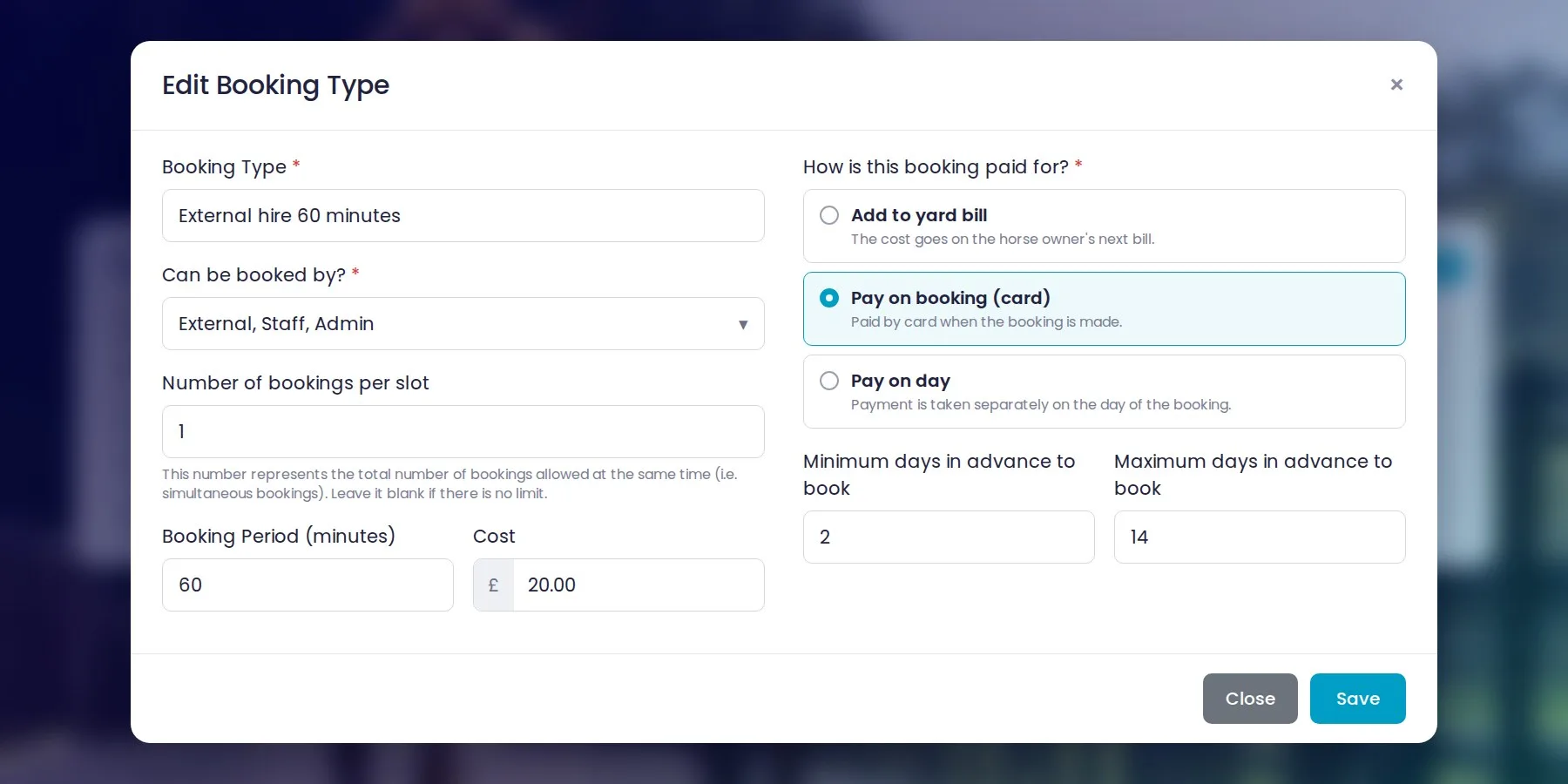
This is the new bit. Booking types are the different ways your arena can be booked, and each one has its own simple set of rules. Most yards only need one or two, but you can have as many as you like.
For each booking type you choose:
- Who can book it: liveries, external riders, staff, or a mix
- Bookings per slot: whether riders can share the arena. Set it to 1 for solo hire, so nobody else can book that time. Set it higher for shared sessions, and the slot stays open until it’s full.
- Duration and price: how long each booking lasts and what it costs
- Paid in advance: riders pay online by card when they book (this needs Stripe connected)
- Booking window: how far ahead riders can book
Here are two examples of how a yard might set things up.
Example 1: External hire
- Name: 1 Hour Private Hire
- Who can book: external riders
- Bookings per slot: 1 (solo, nobody else in the arena)
- Price: £25, paid in advance by card
- Booking window: at least 2 days ahead, and no more than 14 days ahead
Example 2: Livery schooling
- Name: 1 Hour Schooling
- Who can book: liveries
- Bookings per slot: 4 (up to four riders share the arena)
- Price: free
- Booking window: no minimum or maximum
To add a booking type, go to Arena Bookings, select your arena, click save.
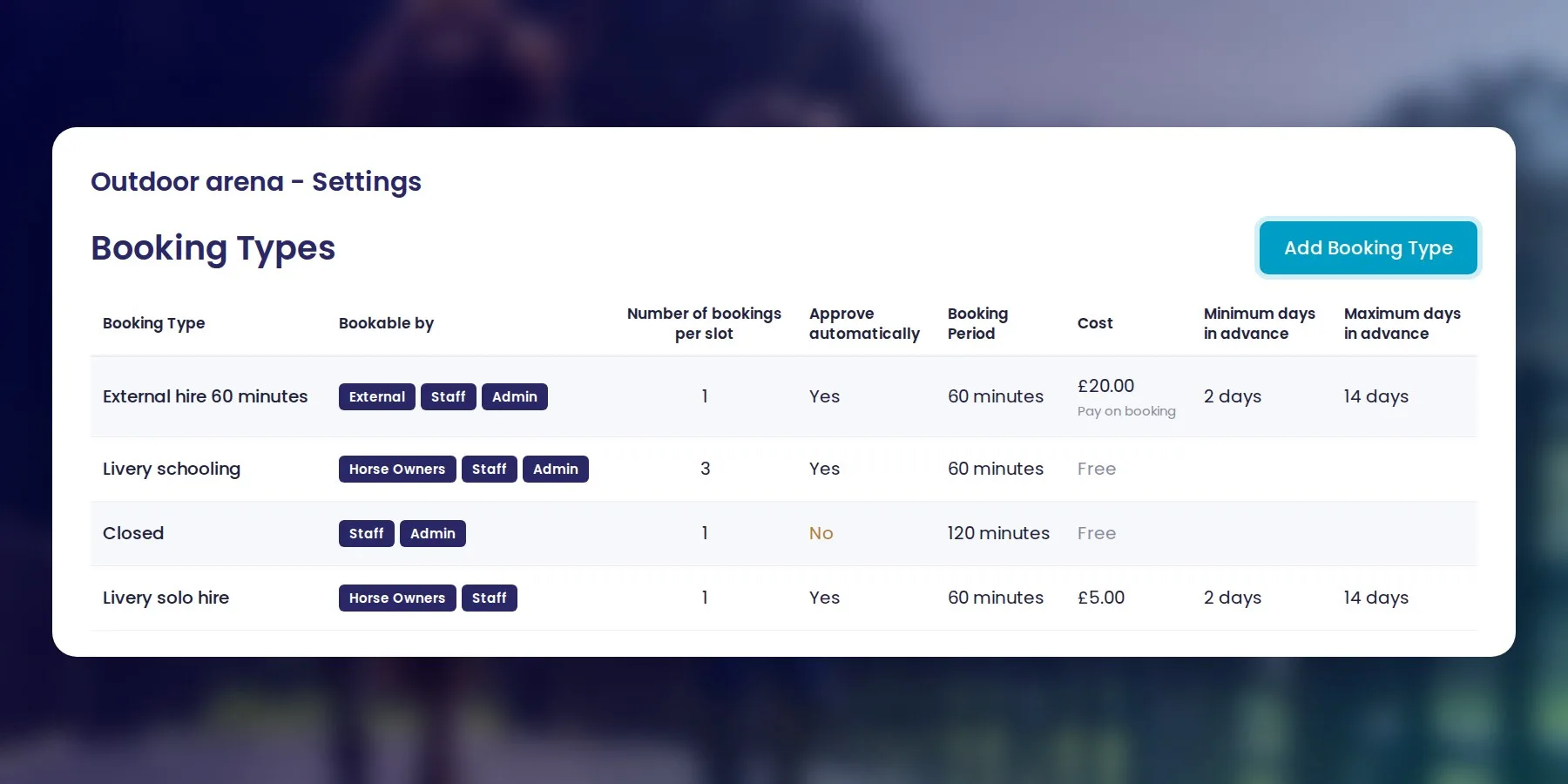
Add Booking Type, fill in the details and click Save.
Step 3: Set your availability
Next, tell the system when each booking type can be booked.
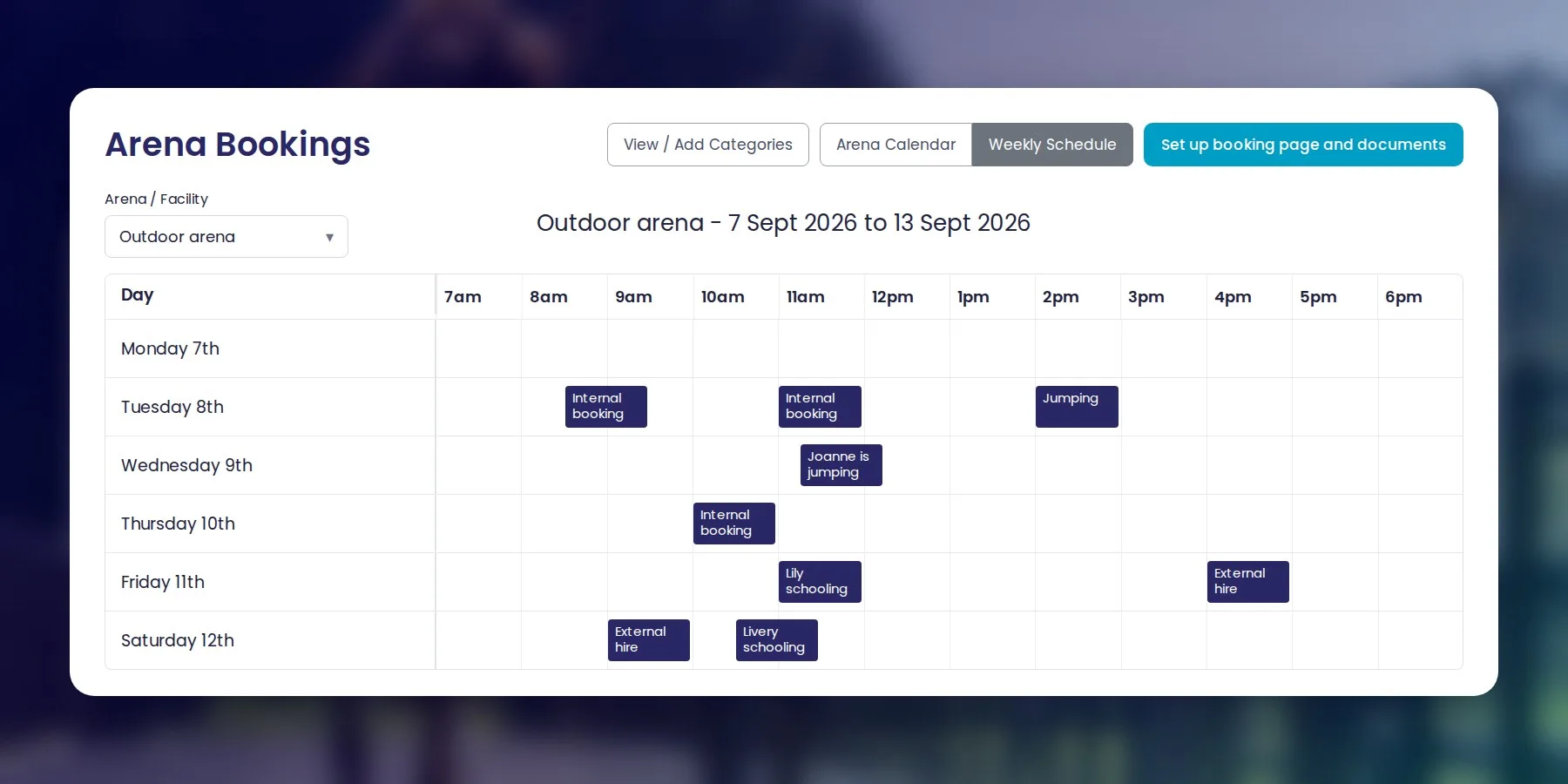
- Click View Time Slots next to your booking type.
- Choose the days and hours. For example, external hire might run Monday to Friday, 9am to 3pm, while livery schooling runs every day from 7am to 7pm.
- Click Save.
Once your booking types and time slots are saved, your arena booking page is live and ready.
Step 4: Make your listing stand out
This is what riders see when they search for arena booking near them, so it’s worth a few extra minutes
On your Arena Bookings page, click Set up booking page and documents. Here you can add:
-
- Your yard logo
- An arena photo (a bright, wide shot of the arena works best)
- Your listing text: what your arena is like, surface, size, lights, parking and anything else riders will want to know
- Your terms and conditions or arena rules, which riders agree to when they book
Step 5: Put yourself on the map
To appear when riders search by postcode, set your yard location.
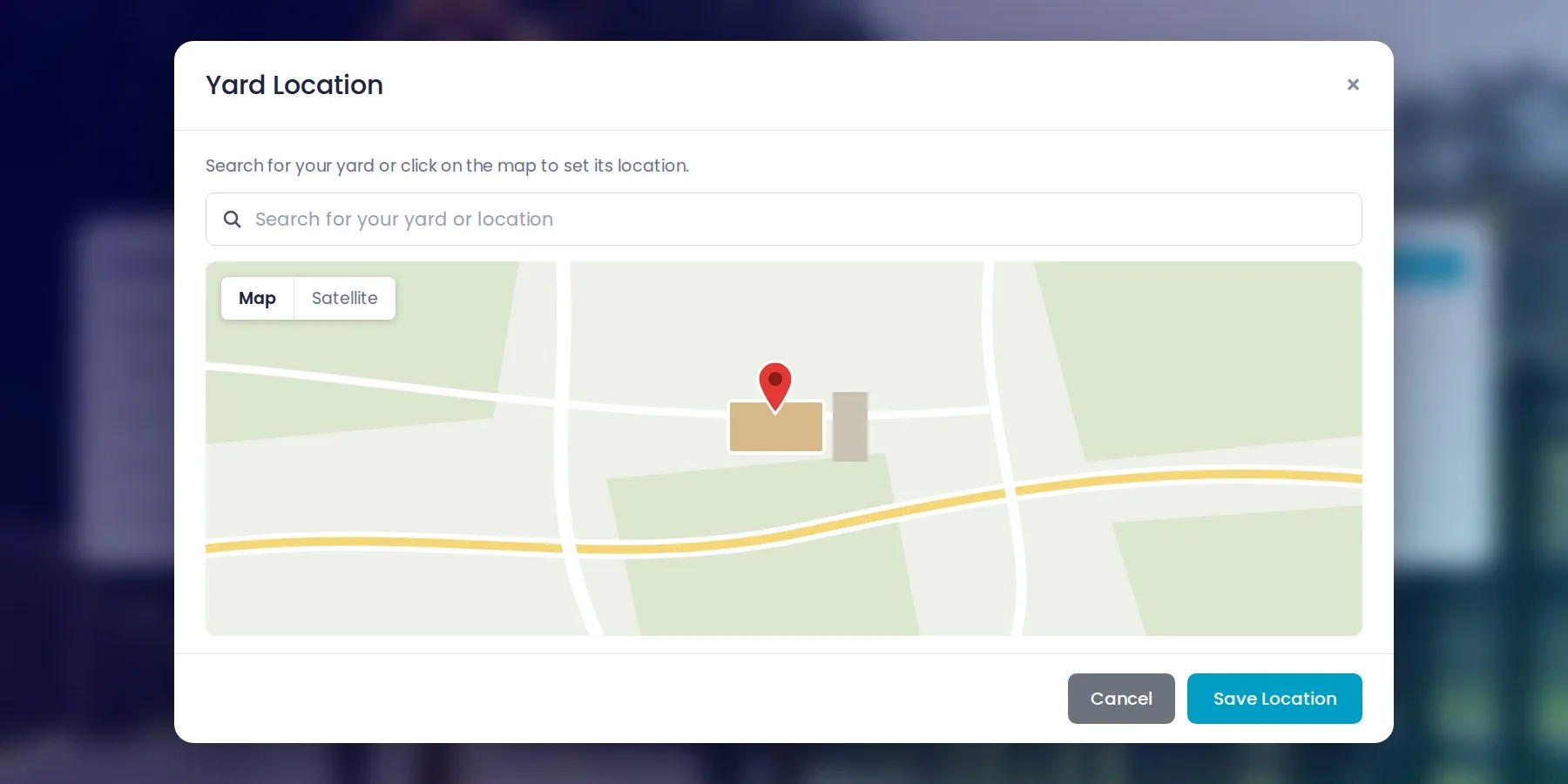
- Go to Yard Set Up > General Settings.
- Find your yard on the map lookup and save.
Riders searching nearby can now find your arena, see your facilities and book.
That’s it, your arena booking is live
Your arena is set up, bookable and ready to be found. Every booking lands straight in your yard calendar, so you can see everything in one place.
Want us to set it up for you? Just tell us roughly how you’d like your arena bookings to work, for example who can book, when and at what price, and we’ll do the rest. Email [email protected] or book a demo.
Not on LIVERYLive yet? An arena account is free. Create one and you can upgrade to the full yard management system any time.