
Field Mapping Made Easy: Map Your Fields in 5 Simple Steps
Field mapping is live in LIVERYLive. Record your fields, who’s turned out where and every job done on the land, all in one place.
Field mapping gives you one place to record your fields, horse turnout and land management, instead of notebooks, chat messages and memory.
Why field mapping matters
Grazing is one of a yard’s most valuable assets and one of the hardest to keep track of. Fields need resting, rolling, harrowing and fertilising at the right times. Horses rotate between paddocks through the season. And staff and owners often need answers that only exist in one person’s head. Field mapping is a shared record that’s quick enough for a busy morning and detailed enough for planning the year.
Map your fields in 5 steps
- Open Fields
Go to Yard Management > Fields and click + Add Field.
- Find your yard
Type your postcode into the search bar and switch to satellite view.
- Draw your field
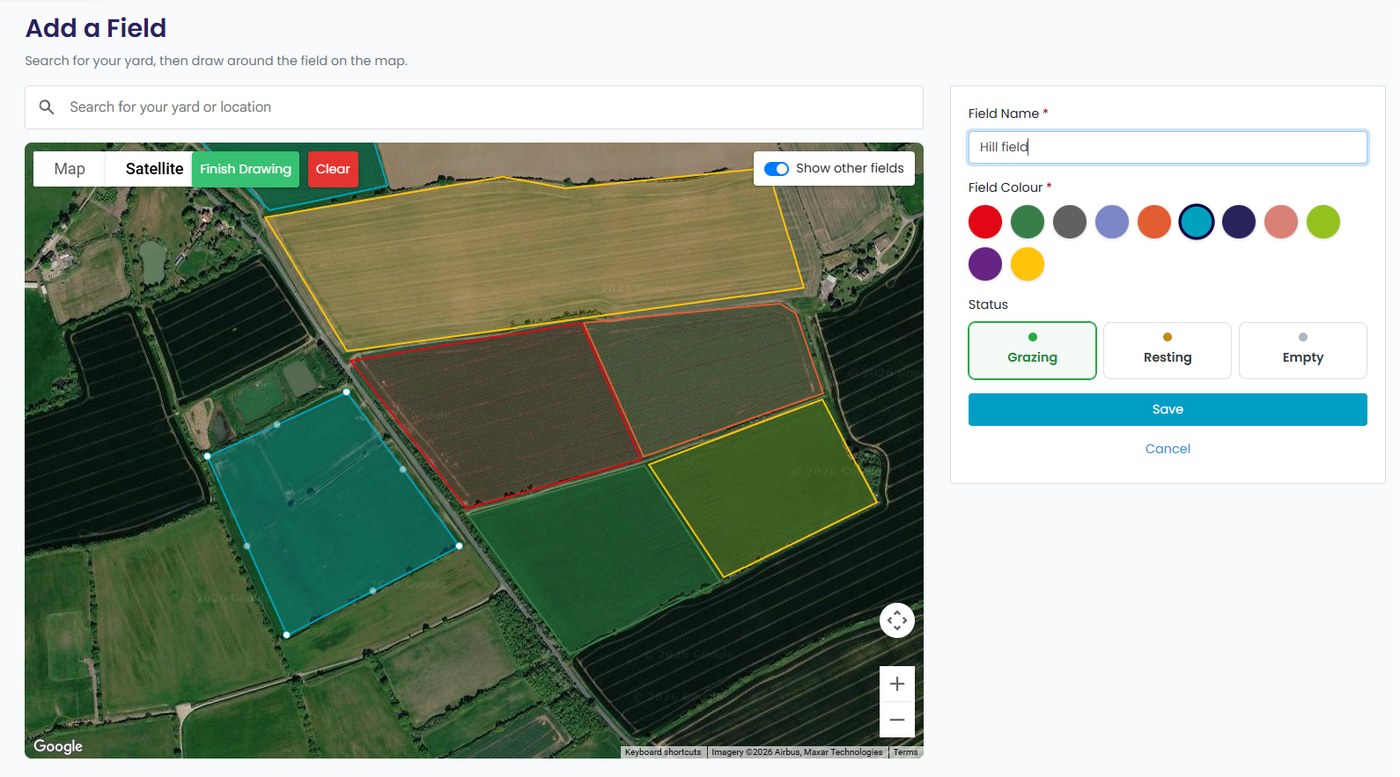
Click Draw Field, click each corner of the field, drag points to adjust, then click Finish Drawing.
- Name and save
Name the field, pick a colour, set its status to Grazing, Resting or Empty, and click Save.
- Add horses and actions
Open the field to add horses and start logging work done on it.
See your whole yard on one map
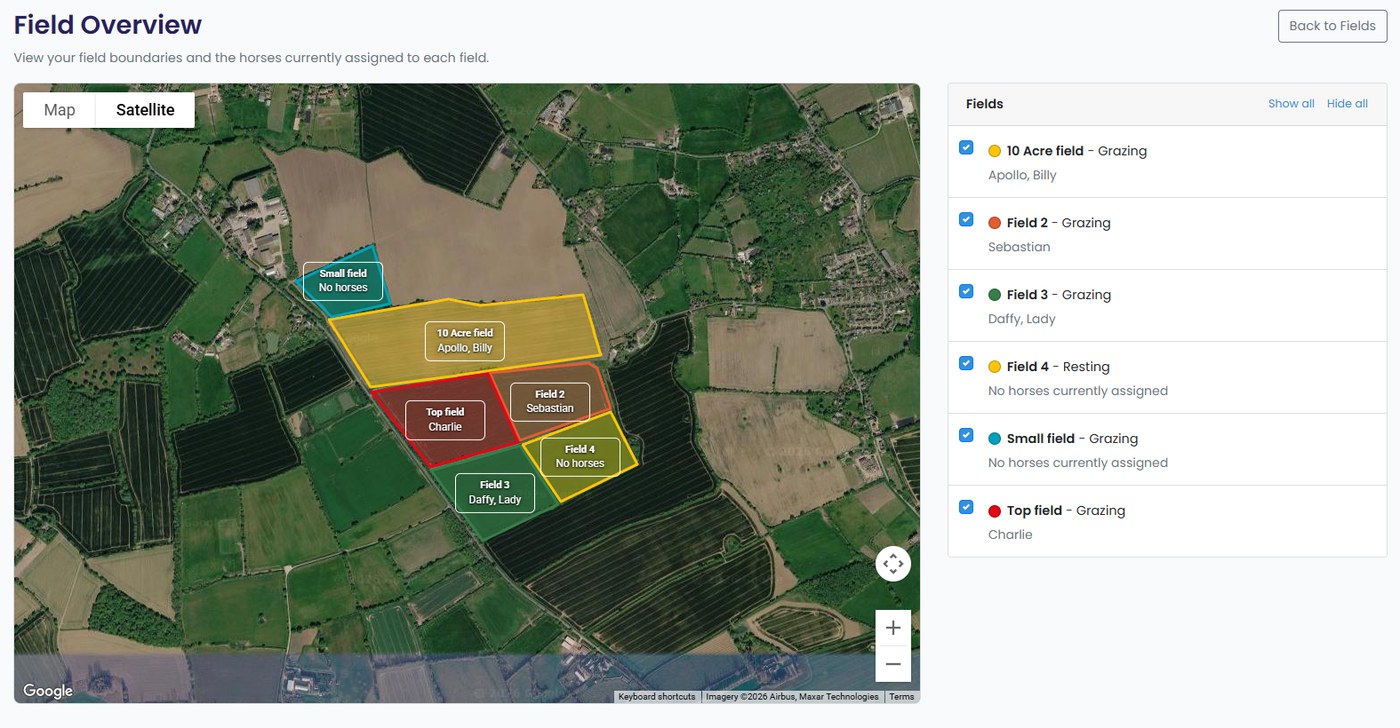
Once your fields are drawn, click Overview to see them all on one map, each labelled with its name and the horses in it. Use the list on the right to show or hide fields.
Know who’s where at a glance
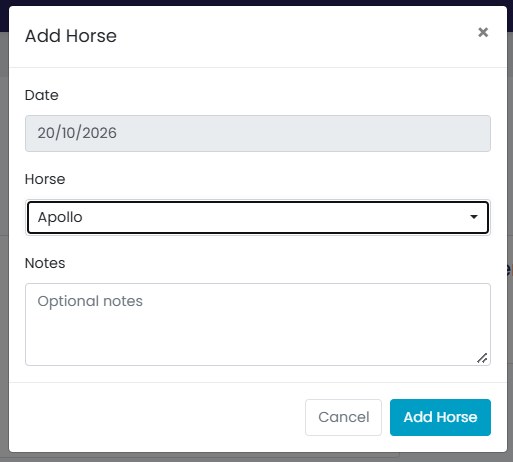
Add horses to a field and the field list shows exactly who is turned out where. Moving a horse takes one click, from the field or from the horse’s profile, and every horse profile shows its current field.
Keep a proper record of your land
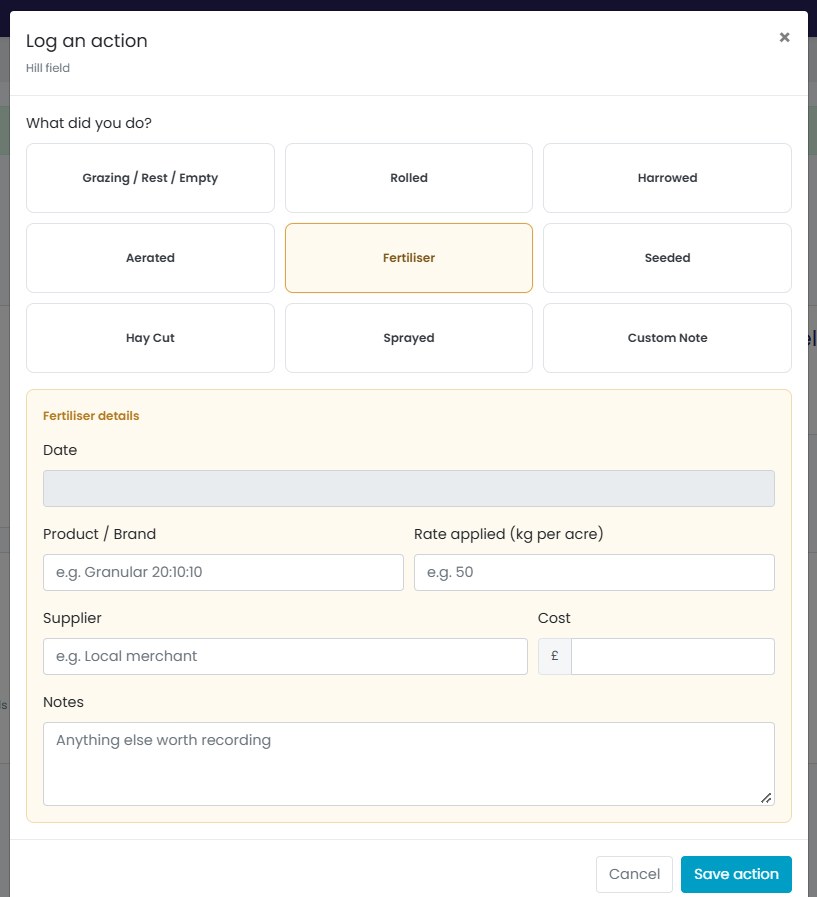
Log rolling, harrowing, aerating, seeding, spraying, fertilising and hay cuts. Each entry can include the product, rate, supplier and cost, building a history for every field. The field summary updates itself with when it was last rested, last cut for hay and last fertilised, so there’s no hunting for receipts.
Tips to get the most from it
- Map every field, including small turnout paddocks, winter pens and hay fields.
- Use colours consistently, for example one for summer grazing and another for winter paddocks.
- Check “last rested” before moving horses, to help with rotation and recovery.
- Log costs as you go to see what each field costs over a season.
- Use the history at staff handovers, so new team members don’t rely on memory.
Questions
Is it in the app?
Field mapping is on the website now and coming to the app very soon.
What can I record?
Horse moves, grazing and rest periods, rolling, harrowing, aerating, seeding, spraying, fertiliser, hay cuts and your own notes.
Start mapping today
Field mapping is live. Log in to map your first field, or book a demo. For grazing advice, see the Yard Owner Hub’s grassland guides.
More from Yard Talk
Everything in Yard Talk →App Top Tip: Kill the “Instruction Overload” with Additional Extras
App Top Tip: The 30-Second Monthly Invoice
Managing Rent Packages: A Quick Guide
See it on your own yard
Try the full Pro system free for 6 weeks. No card needed.